 HSE.myUser Guide
HSE.my · PUBLIC USER GUIDE
Compliance & regulatory
Keep obligations, SHASSIC construction assessments, statutory submissions, audits and controlled evidence ready for review.
Search this category by module, function, role or example scenario.
GOVERNANCE
Compliance & regulatory
Keep obligations, SHASSIC construction assessments, statutory submissions, audits and controlled evidence ready for review.
01 GOVERNANCEPolicy and ObjectivesVersion, approve, communicate and review OH&S policy and measurable objectives.
What you can do
- Create or amend the record while your role and the current workflow state permit it.
- Capture the controlled particulars: Organization Unit, Title, Description, Version.
- Add source-specific retained details, evidence and location where applicable.
- Submit, review, approve, print or supersede through the controlled workflow.
Authorized role examples
Compliance Manager, Statutory Reporting Officer, HSE Manager, Professional Assessor / Consultant, Independent Verifier, Management Approver, Internal Auditor and Organization Administrator. Roles must be active and scoped to the relevant organization unit.
Example scenario
Example: A site needs to version, approve, communicate and review OH&S policy and measurable objectives The authorized user opens Policy and Objectives, completes the controlled record and follows the required workflow.
ANNOTATED CLICK GUIDE
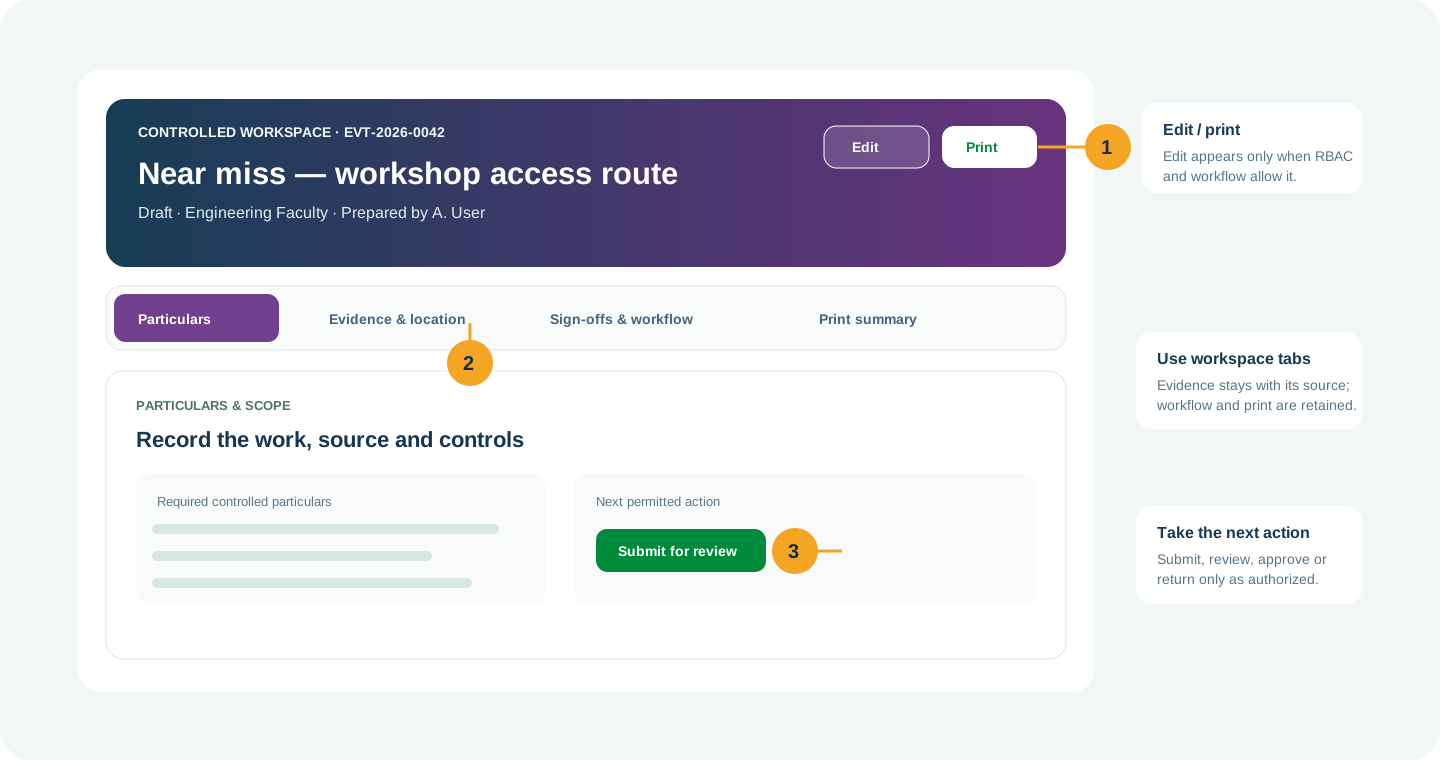
Complete the active tab, then use the highlighted action only when your role and workflow state allow it.


/workspace/governance/policy-objectives- Tap Governance in the bottom navigation, or tap More to open the module picker.
- Use search in the module picker, then select Policy and Objectives.
- On the register, tap Open Workspace for the record or use New only when your role allows it.
Hard delete is never the normal lifecycle for a controlled record. Once used, submitted, approved, linked, printed or evidenced, use amendment, revision, void, retirement, archive or supersede with a reason.
02 GOVERNANCELegal ObligationsMaintain applicable legal duties, owners, evidence, due dates and compliance decisions.
What you can do
- Create or amend the record while your role and the current workflow state permit it.
- Capture the controlled particulars: Organization Unit, Title, Description, Version.
- Add source-specific retained details, evidence and location where applicable.
- Submit, review, approve, print or supersede through the controlled workflow.
Authorized role examples
Compliance Manager, Statutory Reporting Officer, HSE Manager, Professional Assessor / Consultant, Independent Verifier, Management Approver, Internal Auditor and Organization Administrator. Roles must be active and scoped to the relevant organization unit.
Example scenario
Example: A site needs to maintain applicable legal duties, owners, evidence, due dates and compliance decisions The authorized user opens Legal Obligations, completes the controlled record and follows the required workflow.
ANNOTATED CLICK GUIDE
Complete the active tab, then use the highlighted action only when your role and workflow state allow it.


/workspace/governance/legal-obligations- Tap Governance in the bottom navigation, or tap More to open the module picker.
- Use search in the module picker, then select Legal Obligations.
- On the register, tap Open Workspace for the record or use New only when your role allows it.
Hard delete is never the normal lifecycle for a controlled record. Once used, submitted, approved, linked, printed or evidenced, use amendment, revision, void, retirement, archive or supersede with a reason.
03 GOVERNANCEISO 45001Maintain clause-to-feature-to-evidence traceability and executable management-system actions.
What you can do
- Create or amend the record while your role and the current workflow state permit it.
- Capture the controlled particulars: Organization Unit, Title, Description, Version.
- Add source-specific retained details, evidence and location where applicable.
- Submit, review, approve, print or supersede through the controlled workflow.
Authorized role examples
Compliance Manager, Statutory Reporting Officer, HSE Manager, Professional Assessor / Consultant, Independent Verifier, Management Approver, Internal Auditor and Organization Administrator. Roles must be active and scoped to the relevant organization unit.
Example scenario
Example: A site needs to maintain clause-to-feature-to-evidence traceability and executable management-system actions The authorized user opens ISO 45001, completes the controlled record and follows the required workflow.
ANNOTATED CLICK GUIDE
Complete the active tab, then use the highlighted action only when your role and workflow state allow it.


/workspace/governance/iso45001- Tap Governance in the bottom navigation, or tap More to open the module picker.
- Use search in the module picker, then select ISO 45001.
- On the register, tap Open Workspace for the record or use New only when your role allows it.
Hard delete is never the normal lifecycle for a controlled record. Once used, submitted, approved, linked, printed or evidenced, use amendment, revision, void, retirement, archive or supersede with a reason.
04 GOVERNANCERegulatory Control PacksVersion legally reviewed rules, fields, formulae and official controlled print profiles.
What you can do
- Configure controlled regulatory pack content and applicability.
- Do not use it as an operational case or duplicate evidence source.
- Publish revisions through an authorized configuration workflow.
Authorized role examples
Compliance Manager, Statutory Reporting Officer, HSE Manager, Professional Assessor / Consultant, Independent Verifier, Management Approver, Internal Auditor and Organization Administrator. Roles must be active and scoped to the relevant organization unit.
Example scenario
Example: A site needs to version legally reviewed rules, fields, formulae and official controlled print profiles The authorized user opens Regulatory Control Packs, completes the controlled record and follows the required workflow.
ANNOTATED CLICK GUIDE
Complete the active tab, then use the highlighted action only when your role and workflow state allow it.


/workspace/governance/regulatory-control-packs- Tap Governance in the bottom navigation, or tap More to open the module picker.
- Use search in the module picker, then select Regulatory Control Packs.
- On the register, tap Open Workspace for the record or use New only when your role allows it.
Hard delete is never the normal lifecycle for a controlled record. Once used, submitted, approved, linked, printed or evidenced, use amendment, revision, void, retirement, archive or supersede with a reason.
05 GOVERNANCEJKKP 6–10 Statutory ReportingManage JKKP 6, 7, 8, 9 and 10 from one controlled reporting workspace.
What you can do
- Choose JKKP 6, 7, 8, 9 or 10 from the combined statutory workspace.
- Retain submission attempts, delivery proof, authority acknowledgement, correction and print history.
- Use only an authorized statutory reporting officer for submission decisions.
Authorized role examples
Environment/Statutory Reporting Officer and an authorized approver for the organization.
Example scenario
The statutory officer prepares a JKKP submission, retains the delivery evidence and acknowledgement, then prints the complete submission history for audit.
ANNOTATED CLICK GUIDE
Choose the required statutory form, then retain submission evidence and acknowledgement in the controlled workspace.


/workspace/governance/jkkp- Tap Governance in the bottom navigation, or tap More to open the module picker.
- Use search in the module picker, then select Jkkp.
- On the register, tap Open Workspace for the record or use New only when your role allows it.
Submission and ledger history is append-only: correct with a new retained entry, never by overwriting or deleting prior evidence.
06 GOVERNANCERegulator CasesTrack notices, inspections, commitments, submissions, responses and case closure.
What you can do
- Create or amend the record while your role and the current workflow state permit it.
- Capture the controlled particulars: Organization Unit, Title, Description, Authority.
- Add source-specific retained details, evidence and location where applicable.
- Submit, review, approve, print or supersede through the controlled workflow.
Authorized role examples
Compliance Manager, Statutory Reporting Officer, HSE Manager, Professional Assessor / Consultant, Independent Verifier, Management Approver, Internal Auditor and Organization Administrator. Roles must be active and scoped to the relevant organization unit.
Example scenario
Example: A site needs to track notices, inspections, commitments, submissions, responses and case closure The authorized user opens Regulator Cases, completes the controlled record and follows the required workflow.
ANNOTATED CLICK GUIDE
Complete the active tab, then use the highlighted action only when your role and workflow state allow it.


/workspace/governance/regulator-cases- Tap Governance in the bottom navigation, or tap More to open the module picker.
- Use search in the module picker, then select Regulator Cases.
- On the register, tap Open Workspace for the record or use New only when your role allows it.
Hard delete is never the normal lifecycle for a controlled record. Once used, submitted, approved, linked, printed or evidenced, use amendment, revision, void, retirement, archive or supersede with a reason.
07 GOVERNANCEWorkplace AssuranceRun configurable workplace assurance checks, accountable findings and effectiveness closure.
What you can do
- Create or amend the record while your role and the current workflow state permit it.
- Capture the controlled particulars: Organization Unit, Title, Description, Assurance template version.
- Add source-specific retained details, evidence and location where applicable.
- Submit, review, approve, print or supersede through the controlled workflow.
Authorized role examples
Compliance Manager, Statutory Reporting Officer, HSE Manager, Professional Assessor / Consultant, Independent Verifier, Management Approver, Internal Auditor and Organization Administrator. Roles must be active and scoped to the relevant organization unit.
Example scenario
Example: A site needs to run configurable workplace assurance checks, accountable findings and effectiveness closure The authorized user opens Workplace Assurance, completes the controlled record and follows the required workflow.
ANNOTATED CLICK GUIDE
Complete the active tab, then use the highlighted action only when your role and workflow state allow it.


/workspace/governance/workplace-assurance- Tap Governance in the bottom navigation, or tap More to open the module picker.
- Use search in the module picker, then select Workplace Assurance.
- On the register, tap Open Workspace for the record or use New only when your role allows it.
Hard delete is never the normal lifecycle for a controlled record. Once used, submitted, approved, linked, printed or evidenced, use amendment, revision, void, retirement, archive or supersede with a reason.
08 GOVERNANCEOSHWA AssuranceExecute versioned OSHWA checklist, conditional scoring, CAPA and re-audit verification.
What you can do
- Create or amend the record while your role and the current workflow state permit it.
- Capture the controlled particulars: Organization Unit, Title, Description, Checklist profile version.
- Add source-specific retained details, evidence and location where applicable.
- Submit, review, approve, print or supersede through the controlled workflow.
Authorized role examples
Compliance Manager, Statutory Reporting Officer, HSE Manager, Professional Assessor / Consultant, Independent Verifier, Management Approver, Internal Auditor and Organization Administrator. Roles must be active and scoped to the relevant organization unit.
Example scenario
Example: A site needs to execute versioned OSHWA checklist, conditional scoring, CAPA and re-audit verification The authorized user opens OSHWA Assurance, completes the controlled record and follows the required workflow.
ANNOTATED CLICK GUIDE
Complete the active tab, then use the highlighted action only when your role and workflow state allow it.


/workspace/governance/oshwa- Tap Governance in the bottom navigation, or tap More to open the module picker.
- Use search in the module picker, then select OSHWA Assurance.
- On the register, tap Open Workspace for the record or use New only when your role allows it.
Hard delete is never the normal lifecycle for a controlled record. Once used, submitted, approved, linked, printed or evidenced, use amendment, revision, void, retirement, archive or supersede with a reason.
09 GOVERNANCESHASSICPrepare project evidence, assess three components and track independent review and CIDB results.
What you can do
- Select Add project to open the registration modal; record the organization unit, location, client, contractor, dates and scope. Use Manage access on the project row to assign authorized members.
- Select Add assessment to open the planning modal using a published profile. Record the assessment date, dated physical progress and scope; assign three different people as lead assessor, reviewer and approver. The creator cannot be the reviewer or approver.
- In the assessment register, select Open workspace directly, or Detail for a summary modal. Use Edit to update open assessment particulars with a reason; submitted, reviewed and approved rounds are locked. Use Overview, Documents, Site inspection, Interviews, Findings / CAPA, Results / CIDB and History.
- Complete document checks, record selected site activities and their rationale, and add coded personnel interviews in categories A (managerial), B (supervisory) and C (workers). The starter profile requires at least 3 site activities and 1 / 3 / 9 interviews respectively.
- Save Yes, No or permitted N/A responses. Record remarks for No, N/A and every interview response; attach required evidence or link an authorized source record. Create or link CAPA for every No finding.
- Optional autosave requires an active connection. Wait for Saved; after a conflict, preserve unsaved input and refresh before retrying. SHASSIC does not provide offline draft synchronization.
- Use Overview > Workflow update: Draft → Planned → In assessment → Submitted → Reviewed → Approved / locked. Complete required responses, samples, evidence and CAPA before submission; reviewers or approvers can return the assessment with a reason.
- Review component rates, the internal readiness index and any configured formula result separately from completion. Export a PDF report, JSON evidence index / snapshot or Evidence ZIP. Start a new reassessment round with a reason to preserve the previous approved result.
- Use Results / CIDB to retain a received CIDB result, source report, reference, date, assessor, score and stars. Another authorized person verifies the source; internal approval never creates an official CIDB result.
- Open User guide from the SHASSIC register for the detailed Markdown guide. Testing guide and test scenarios are maintained as developer Markdown files and are not linked on this page. The starter contains original HSE.my preparation prompts, not the full CIS 10:2020 questionnaire.
Authorized role examples
Organization Administrator, HSE Manager or Safety Officer for planning; assigned Safety Officer / Professional Assessor for assessment; HSE Manager / Independent Verifier for review; HSE Manager / Management Approver for approval; Auditor for permitted reading and export. Active organization/unit capabilities and project membership apply; administrators retain their authorized unit scope.
Example scenario
A construction team plans a readiness assessment, selects three high-risk activities and interviews the required personnel categories. The lead records a missing lifting control as No and links CAPA. After the assessment is complete, separate reviewers approve the retained snapshot; a later reassessment records whether controls have improved.
ANNOTATED CLICK GUIDE
From the register, select Open workspace. Add, Edit and Detail open popup modals. Record the response and remark in the relevant tab, then select Save response. Use Overview for the next permitted workflow action.


/workspace/governance/shassic- Tap More and select Compliance & Regulatory, then SHASSIC.
- Find the assessment card and tap Open workspace. Add, Edit and Detail open popup modals.
- Swipe the assessment tabs to reach Documents, Site inspection or Interviews; save each response and wait for Saved before leaving.
Approved internal assessments are locked snapshots. Use a new reassessment round with a reason; CAPA closure does not rewrite an earlier score. The starter checklist and calculated results are internal preparation aids, not a CIDB certificate or official SHASSIC star rating. Received CIDB results remain separate and require their source document.
10 GOVERNANCESHASSIC Formula & Standard ProfilesAdmin and consultant configuration of versioned checklists, sampling requirements, formulas and internal rating thresholds.
What you can do
- From SHASSIC, open Formula & Standard Profiles. Under Create new profile version, clone a source profile into a named draft version; its formula must be entered and validated again.
- In Checklist criteria, add or edit prompts, components, interview categories, order, N/A permission and required evidence. Every component and interview category A / B / C must have criteria before publication.
- In Configure and validate formula, use documents, site and interviews as component percentages: Yes / (Yes + No) × 100. N/A is excluded. Expressions support numbers, +, -, *, / and parentheses; executable code is not accepted.
- Record the method source, edition / page and reviewer notes. Optional internal rating thresholds are five strictly increasing minimum scores between 0 and 100, one for each internal level 1–5.
- Enter three different reference examples with independently calculated expected results, including unequal component values. Confirm the declaration, then select Validate examples & save formula. The system also checks 125 input combinations for invalid results.
- For syntax practice only, (documents + site + interviews) / 3 gives 0 for 0 / 0 / 0, 100 for 100 / 100 / 100 and 66.67 for 100 / 50 / 50. This example is not a verified CIDB formula.
- Under Publish controlled version, review the source and minimum site / interview samples, then select Publish and lock version. New assessments can select the published profile; later changes require a new version.
- The configurable formula combines the existing component percentages. Different item scoring methods require a reviewed application change. Passing arithmetic tests does not certify the checklist, formula or internal rating against CIS.
Authorized role examples
Organization Administrator, HSE Manager and Professional Assessor / Consultant with shassic.formula.manage for formulas and shassic.profile.manage for checklist configuration and publication. Formula access alone does not grant access to project responses or interview records.
Example scenario
A consultant prepares a new checklist version, cites the reviewed method and checks three independently calculated examples. After publication, new assessment rounds use that version while earlier approved assessments retain their original profile and results.
ANNOTATED CLICK GUIDE
Expand Configure and validate formula in a draft profile. Enter the expression, source and three reference examples, then select Validate examples & save formula before publishing the reviewed version.


/workspace/governance/shassic/formulas- Open SHASSIC from Compliance & Regulatory.
- Tap Formula & Standard Profiles, then expand Create new profile version or the draft profile controls.
- Validate the formula examples and publish the reviewed version only when your role permits it.
Published profiles are immutable. Clone a new version for changes and revalidate its formula against reviewed reference examples. Internal rating thresholds are separate from stars on a received CIDB report; consultant configuration does not establish CIDB accreditation or CIS compliance.
11 GOVERNANCEInternal AuditsPlan risk-based audits, record findings and verify corrective-action closure.
What you can do
- Create or amend the record while your role and the current workflow state permit it.
- Capture the controlled particulars: Organization Unit, Title, Description, Audit program reference.
- Add source-specific retained details, evidence and location where applicable.
- Submit, review, approve, print or supersede through the controlled workflow.
Authorized role examples
Compliance Manager, Statutory Reporting Officer, HSE Manager, Professional Assessor / Consultant, Independent Verifier, Management Approver, Internal Auditor and Organization Administrator. Roles must be active and scoped to the relevant organization unit.
Example scenario
Example: A site needs to plan risk-based audits, record findings and verify corrective-action closure The authorized user opens Internal Audits, completes the controlled record and follows the required workflow.
ANNOTATED CLICK GUIDE
Complete the active tab, then use the highlighted action only when your role and workflow state allow it.


/workspace/governance/internal-audits- Tap Governance in the bottom navigation, or tap More to open the module picker.
- Use search in the module picker, then select Internal Audits.
- On the register, tap Open Workspace for the record or use New only when your role allows it.
Hard delete is never the normal lifecycle for a controlled record. Once used, submitted, approved, linked, printed or evidenced, use amendment, revision, void, retirement, archive or supersede with a reason.
12 GOVERNANCERe-auditsVerify corrective actions against an earlier audit using independent evidence.
What you can do
- Create or amend the record while your role and the current workflow state permit it.
- Capture the controlled particulars: Organization Unit, Title, Description, Parent internal audit.
- Add source-specific retained details, evidence and location where applicable.
- Submit, review, approve, print or supersede through the controlled workflow.
Authorized role examples
Compliance Manager, Statutory Reporting Officer, HSE Manager, Professional Assessor / Consultant, Independent Verifier, Management Approver, Internal Auditor and Organization Administrator. Roles must be active and scoped to the relevant organization unit.
Example scenario
Example: A site needs to verify corrective actions against an earlier audit using independent evidence The authorized user opens Re-audits, completes the controlled record and follows the required workflow.
ANNOTATED CLICK GUIDE
Complete the active tab, then use the highlighted action only when your role and workflow state allow it.


/workspace/governance/re-audits- Tap Governance in the bottom navigation, or tap More to open the module picker.
- Use search in the module picker, then select Re-audits.
- On the register, tap Open Workspace for the record or use New only when your role allows it.
Hard delete is never the normal lifecycle for a controlled record. Once used, submitted, approved, linked, printed or evidenced, use amendment, revision, void, retirement, archive or supersede with a reason.
13 GOVERNANCEManagement ReviewsExecute agenda, inputs, decisions, resources and improvement actions for management review.
What you can do
- Create or amend the record while your role and the current workflow state permit it.
- Capture the controlled particulars: Organization Unit, Title, Description, Review date.
- Add source-specific retained details, evidence and location where applicable.
- Submit, review, approve, print or supersede through the controlled workflow.
Authorized role examples
Compliance Manager, Statutory Reporting Officer, HSE Manager, Professional Assessor / Consultant, Independent Verifier, Management Approver, Internal Auditor and Organization Administrator. Roles must be active and scoped to the relevant organization unit.
Example scenario
Example: A site needs to execute agenda, inputs, decisions, resources and improvement actions for management review The authorized user opens Management Reviews, completes the controlled record and follows the required workflow.
ANNOTATED CLICK GUIDE
Complete the active tab, then use the highlighted action only when your role and workflow state allow it.


/workspace/governance/management-reviews- Tap Governance in the bottom navigation, or tap More to open the module picker.
- Use search in the module picker, then select Management Reviews.
- On the register, tap Open Workspace for the record or use New only when your role allows it.
Hard delete is never the normal lifecycle for a controlled record. Once used, submitted, approved, linked, printed or evidenced, use amendment, revision, void, retirement, archive or supersede with a reason.
14 GOVERNANCEGovernance Evidence PacksAssemble a versioned index of approved policies, audits, actions and assurance evidence.
What you can do
- Assemble an approved, frozen evidence index for review or regulator submission.
- Retain the included reference/version, approval and print history.
- Do not alter an approved pack; supersede it with a new controlled pack when evidence changes.
Authorized role examples
Compliance Manager, Statutory Reporting Officer, HSE Manager, Professional Assessor / Consultant, Independent Verifier, Management Approver, Internal Auditor and Organization Administrator. Roles must be active and scoped to the relevant organization unit.
Example scenario
Example: A site needs to assemble a versioned index of approved policies, audits, actions and assurance evidence The authorized user opens Governance Evidence Packs, completes the controlled record and follows the required workflow.
ANNOTATED CLICK GUIDE
Review the included versions, then freeze the evidence index through the controlled approval route.


/workspace/governance/evidence-packs- Tap Governance in the bottom navigation, or tap More to open the module picker.
- Use search in the module picker, then select Governance Evidence Packs.
- On the register, tap Open Workspace for the record or use New only when your role allows it.
Hard delete is never the normal lifecycle for a controlled record. Once used, submitted, approved, linked, printed or evidenced, use amendment, revision, void, retirement, archive or supersede with a reason.
No module or function matches this search. Try a role, module name or action such as “print”, “evidence” or “CAPA”.
COMMON CONTROL PATTERN
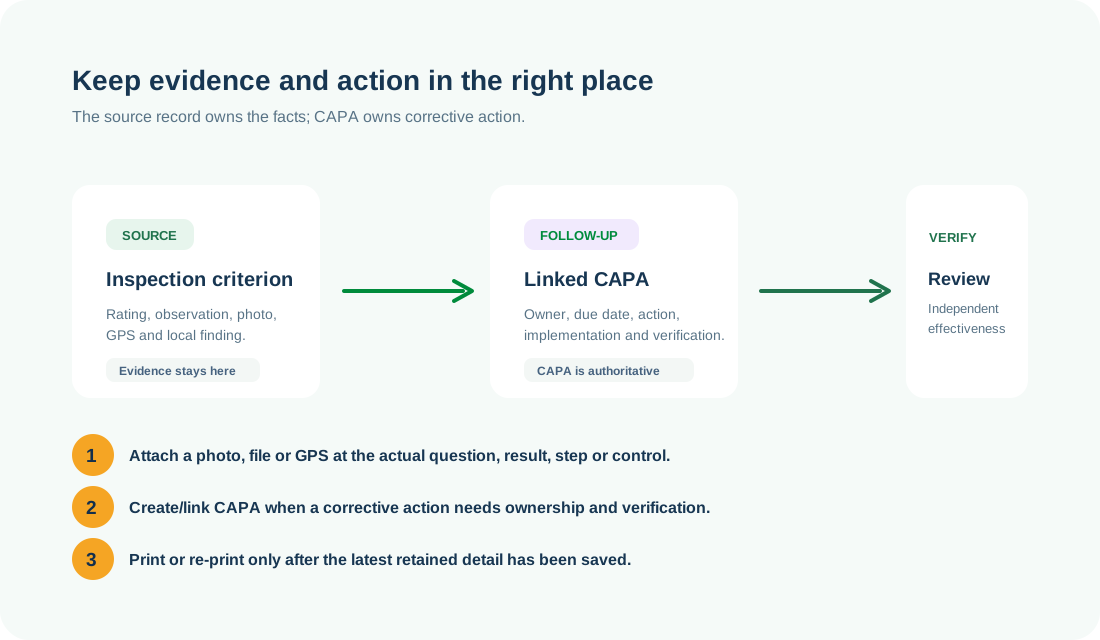
Use the right workspace for the next action
NEED HELP?
Share the record reference, workspace URL and displayed error reference.
Do not include restricted medical, identity or personal data in a support request.